Cron Job Not Running?
10 Causes + Exact Fixes
It's 9am. Your backup didn't run. No error. No log entry. No warning. Just silence. Silent cron failures are one of the most infuriating experiences in Linux administration — the job doesn't run, and cron tells you absolutely nothing about why.
This guide covers all 10 causes, in order of likelihood, with the exact diagnostic commands and fixes for each. By the end you'll have a systematic process that solves 99% of cron failures in under 10 minutes.
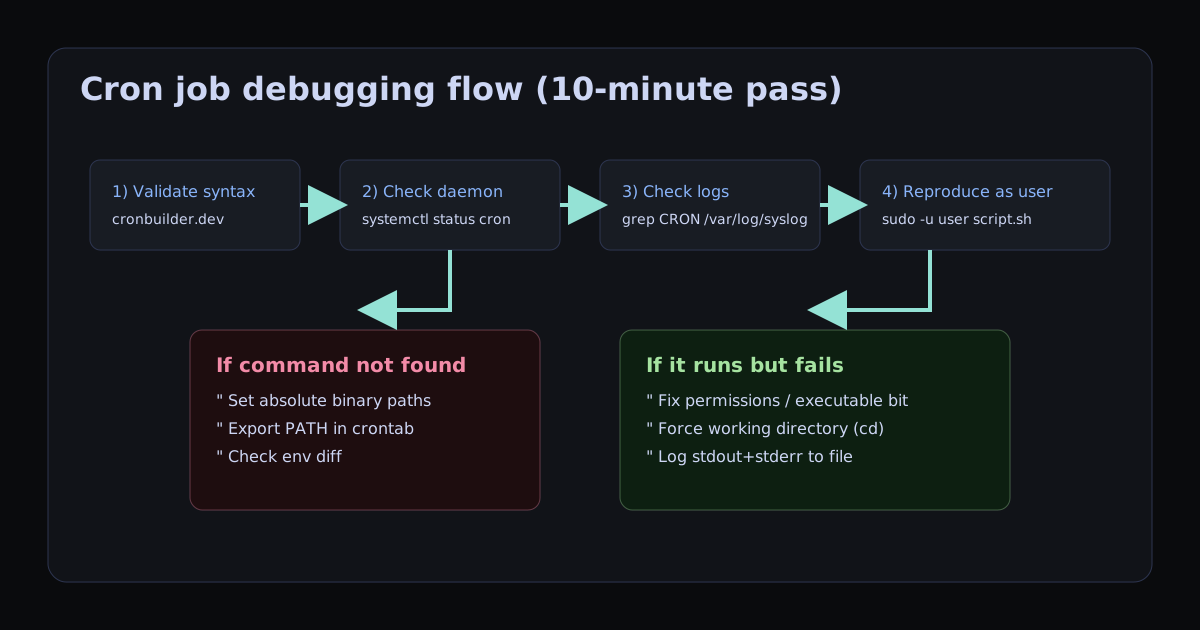
- Quick diagnosis matrix
- Cron command not found
- Cron not executing at all
- Cron job not working after trigger
- Wrong expression syntax
- PATH is not your PATH
- Script is not executable
- Cron daemon is not running
- Relative paths in the script
- Wrong timezone on the server
- Output is swallowing errors
- Environment variables missing
- Overlapping job execution
- Wrong user or permission on the file
systemctl status cron (Ubuntu) or systemctl status crond (RHEL/CentOS)grep CRON /var/log/syslog | tail -30sudo -u www-data /path/to/script.shQuick Diagnosis Matrix (Symptom → Fix)
If you're searching for "cron command not found", "cron not executing", or "cron job not working", use this table to jump straight to the likely cause and command-level fix.
Symptom                            Most Likely Cause              First Command to Run
------------------------------------------------------------------------------------------------
cron command not found            cron daemon/package missing     systemctl status cron || systemctl status crond
cron not executing                service stopped/disabled        sudo systemctl enable --now cron
job runs manually, fails in cron  PATH/env mismatch               * * * * * env > /tmp/cron-env.log
job triggers but no output        logs redirected/discarded       grep CRON /var/log/syslog | tail -30
runs at wrong time                server timezone mismatch        timedatectl
random failures/duplicates        overlapping executions          ps aux | grep script-name | grep -v grep
Sanity check first: validate your expression in CronBuilder or use the reference pages for every minute and every 5 minutes schedules.
Fix: "cron command not found"
This usually means cron is not installed, or you are on a distro where the service/binary name differs (cron vs crond).
# Debian / Ubuntu
sudo apt-get update
sudo apt-get install cron
sudo systemctl enable --now cron

# RHEL / CentOS / Fedora
sudo dnf install cronie
sudo systemctl enable --now crond

# Verify
systemctl status cron || systemctl status crond
If the service exists but your script says a command is missing (like python3 or node), jump to PATH Is Not Your PATH.
Fix: "cron not executing"
If jobs never appear in logs, the scheduler probably is not running, not enabled at boot, or your entry is in the wrong user's crontab.
# Check scheduler status
systemctl status cron || systemctl status crond

# Ensure enabled + running
sudo systemctl enable --now cron || sudo systemctl enable --now crond

# Confirm job is in the right crontab
crontab -l
sudo crontab -l
Also confirm your schedule syntax on the builder and compare with known working formats like * * * * *.
Fix: "cron job not working" (but it triggers)
If CRON logs show invocation but the task still fails, the issue is usually script runtime context: permissions, relative paths, missing env vars, or suppressed stderr.
# Run as cron user to reproduce real context
sudo -u www-data /path/to/script.sh

# Capture full output while debugging
*/5 * * * * /path/to/script.sh >> /var/log/myjob.log 2>&1

# Compare cron env vs shell env
* * * * * env > /tmp/cron-env.txt
Then walk through PATH, relative paths, and environment variables sections below.
Cron expressions are subtle. A single wrong character means the job never fires — and cron logs this as a parse error, not as a failure, so it's easy to miss.
Diagnose
# Look for "bad minute" or similar parse errors
grep CRON /var/log/syslog | grep -i "error\|bad\|invalid"
Common mistakes that look correct but aren't
# WRONG: space between */ and 5
* /5 * * * *

# WRONG: 6 fields on a standard Unix cron
0 */5 * * * *

# WRONG: value out of range (hour goes 0-23, not 1-24)
0 24 * * *

# WRONG: day-of-week 7 is non-standard (use 0 for Sunday)
0 9 * * 7
Fix
Paste your expression into CronBuilder.dev. If it's valid, you'll see the next 10 run times and a plain-English explanation. If it's invalid, you'll see the exact field that's wrong and why.
This is the single most common cause of "works manually, fails in cron." When you run a command in your terminal, your shell loads .bashrc, .bash_profile, and your full PATH. Cron loads none of that. It starts with a bare-minimum PATH of approximately /usr/bin:/bin.
So when your script calls python3, node, npm, docker, php, or virtually any tool installed via a package manager — cron can't find it.
Diagnose
# See exactly what PATH cron will use
* * * * * env > /tmp/cron-env.log

# Then check the file
cat /tmp/cron-env.log | grep PATH
Fix — Option 1: Use absolute paths (safest)
# Find the full path of the binary
which python3       # → /usr/bin/python3
which node          # → /usr/local/bin/node  (or ~/.nvm/versions/...)

# Then use the absolute path in crontab
0 2 * * * /usr/bin/python3 /home/user/backup.py
Fix — Option 2: Set PATH at the top of your crontab
PATH=/usr/local/bin:/usr/bin:/bin:/home/user/.nvm/versions/node/v20.0.0/bin
MAILTO=""

0 2 * * * python3 /home/user/backup.py
NVM users: NVM sets up PATH in your .bashrc which cron never loads. Always use the full path like /home/user/.nvm/versions/node/v20.11.0/bin/node, or hardlink to /usr/local/bin/node.
If you call a script directly (e.g. /home/user/backup.sh), it must have the execute bit set for the user cron runs as. This is easy to miss when you create a new script or transfer files from another machine.
Diagnose
ls -la /home/user/backup.sh
# Look for the x bit: -rwxr-xr-x means executable
# -rw-r--r-- means NOT executable — this is the problem
Fix
# Make executable by the owner
chmod +x /home/user/backup.sh

# Or more precisely
chmod 755 /home/user/backup.sh
Alternatively, call it via the interpreter directly to sidestep permissions entirely:
# No executable bit needed when calling via interpreter
0 2 * * * /bin/bash /home/user/backup.sh
0 2 * * * /usr/bin/python3 /home/user/backup.pyCron requires a background daemon to be running at all times. After a server reboot, a crash, or an OS upgrade, the daemon may not have restarted.
Diagnose and fix
# Ubuntu / Debian
systemctl status cron
sudo systemctl start cron
sudo systemctl enable cron  # ensure it starts on boot

# RHEL / CentOS / Fedora
systemctl status crond
sudo systemctl start crond
sudo systemctl enable crond

# Older systems using SysV init
service cron status
service cron startCron sets the working directory to the user's home directory, not to the directory where the script lives. Any relative path inside the script like ../data/input.csv or ./config.json will resolve to a completely wrong location.
Fix — Set working directory explicitly in the script
#!/bin/bash
# Always the first line of any cron-called script
cd "$(dirname "$0")" || exit 1

# Now relative paths resolve relative to the script's location
python3 process.py --input ./data/input.csv
Or set it in the crontab itself
# cd first, then run the script
0 2 * * * cd /home/user/myapp && ./run.shCloud servers are almost always set to UTC. If you write a cron expression thinking about your local time (e.g. "9am") but the server is UTC and you're in UTC+1, the job will fire at 8am your time — or worse, it appears not to run on the day you expect because the server's date rolled over at a different time to yours.
Diagnose
# Check what timezone the server thinks it is
date
timedatectl
Fix — Set timezone per crontab (modern cron supports this)
CRON_TZ=Europe/London
0 9 * * 1-5 /home/user/morning-report.sh

CRON_TZ=America/New_York
0 17 * * 1-5 /home/user/eod-export.sh
Or just always think in UTC
# 9am London = 8am UTC (winter), 9am London = 8am UTC (summer)
# Skip the mental maths — use CRON_TZ above
Tip: Use the CronBuilder timezone selector to preview exactly when your expression fires in any timezone — without any mental arithmetic.
By default, cron emails stdout/stderr to the system user — but most servers don't have a mail agent configured, so output silently disappears. If you've redirected stdout to /dev/null but not stderr, or vice versa, errors vanish completely.
Fix — Log both stdout and stderr to a file
# Redirect both stdout (1) and stderr (2) to a log file
0 2 * * * /home/user/backup.sh >> /var/log/backup.log 2>&1

# Append with timestamp for easier reading
0 2 * * * echo "=== $(date) ===" >> /var/log/backup.log && /home/user/backup.sh >> /var/log/backup.log 2>&1
Disable email notifications if you're using file logging
# Add this at the top of your crontab
MAILTO=""
Common trap: > /dev/null 2>&1 discards all output and errors. Great for silencing noise, terrible for debugging. While you're debugging, always write to a log file instead.
Your script works manually because you've set environment variables in .bashrc, .bash_profile, or via direnv. Cron doesn't load any of these. API keys, database URLs, config paths — all missing.
Fix — Source a .env file inside the script
#!/bin/bash
# Load environment variables at the start of the script
set -a
source /home/user/myapp/.env
set +a

python3 myapp.py
Or set variables in the crontab itself
DATABASE_URL=postgresql://user:pass@localhost/mydb
API_KEY=your_key_here
MAILTO=""

0 2 * * * /home/user/myapp/backup.py
Diagnose exactly what environment cron sees
# This writes the full cron environment to a file
* * * * * env > /tmp/cron-environment.txt

# Then compare with your shell environment
env > /tmp/shell-environment.txt
diff /tmp/shell-environment.txt /tmp/cron-environment.txtIf a job takes longer to complete than its interval, a second instance starts before the first one finishes. This doesn't prevent jobs from running — it causes too many to run. Side effects include database lock conflicts, corrupted output files, and resource exhaustion that eventually causes jobs to fail.
Diagnose
# Check if multiple instances are running right now
ps aux | grep backup.sh | grep -v grep
Fix — Use flock to prevent overlapping
# flock exits immediately if the lock is already held
0 */5 * * * flock -n /tmp/myapp.lock /home/user/myapp/process.sh

# Or with a timeout: wait up to 10 seconds for the lock
0 */5 * * * flock -w 10 /tmp/myapp.lock /home/user/myapp/process.shYour crontab runs as your user, but the script or the files it needs might be owned by a different user, or in a directory the cron user can't read. This is especially common when scripts are shared between users or when cron runs as www-data or another service account.
Diagnose
# Check who owns the script and what permissions it has
ls -la /path/to/script.sh

# Test running it as the cron user
sudo -u www-data /path/to/script.sh
Fix
# Change ownership to the user running cron
sudo chown your-user:your-user /path/to/script.sh

# Or set correct permissions
chmod 755 /path/to/script.sh
If you need cron to run as a different user, use the system crontab at /etc/crontab which has an extra username field:
# /etc/crontab — note the username field between schedule and command
0 2 * * * www-data /var/www/html/maintenance.sh
Start with the expression
90% of cron debugging sessions end at step one: the expression was wrong. Paste yours into CronBuilder.dev to eliminate that possibility immediately — see the next 10 run times, the exact field breakdown, and detailed error messages if something's off.
Validate My Expression →The Definitive Debugging Checklist
Work through these in order. Most issues are solved by step 4.
□ 1. Is the cron daemon running?
      systemctl status cron

□ 2. Is the expression valid?
      Paste into cronbuilder.dev

□ 3. Did the job even get invoked?
      grep CRON /var/log/syslog | tail -30

□ 4. Does the command work manually as the cron user?
      sudo -u your-cron-user /path/to/script.sh

□ 5. Are you using absolute paths for all binaries?
      which python3 → use that full path

□ 6. Is the script executable?
      ls -la /path/to/script.sh → look for x bit

□ 7. Are relative paths inside the script resolving correctly?
      Add: cd "$(dirname "$0")" || exit 1

□ 8. Are you logging output and errors?
      Append: >> /var/log/myjob.log 2>&1

□ 9. Is the server timezone what you expect?
      timedatectl

□ 10. Are overlapping instances stacking up?
       ps aux | grep script-name.sh | grep -v grep
Related: Cron vs systemd timers — when to use each on Linux. GitHub Actions cron schedule — gotchas and UTC. Need syntax checks? Start with every minute or every 5 minutes references.