Cron vs systemd Timers:
Which Should You Use in 2026?
Cron has been scheduling Linux tasks since 1975. systemd timers arrived around 2010 and are now the default on every major Linux distribution. So which should you actually use?
The honest answer: cron is still great for simple tasks, but systemd timers win on every objective measure for production services. Here's the full comparison.
2026 Update: What Changed
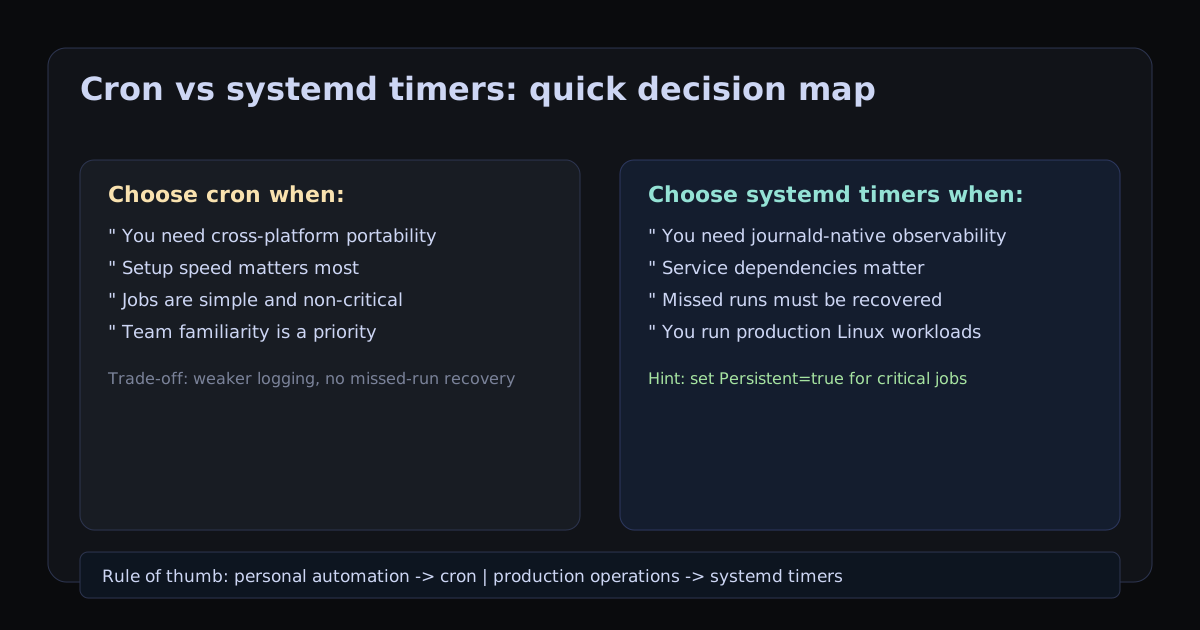
The core tools have not changed — cron is still simple and reliable for small jobs, while systemd timers remain stronger for production-grade scheduling. What has changed in 2026 is expectations: teams now expect first-class observability, dependency-aware execution, and missed-run recovery by default.
Practical 2026 default: for infrastructure or customer-facing workflows, use systemd timers unless you have a clear portability reason to stay on cron. For quick personal automation, cron is still perfect.
Feature Comparison
| Feature | Cron | systemd timer |
|---|---|---|
| Setup complexity | ✓ One line in crontab | Two files (.timer + .service) |
| Logging | Email or redirect manually | ✓ Full journald integration |
| Dependencies | None | ✓ After=, Requires=, etc. |
| Catch up on missed runs | ✗ Missed runs are lost | ✓ Persistent= option |
| Run on boot + interval | Need @reboot + another line | ✓ OnBootSec= + OnUnitActiveSec= |
| Randomised delay | ✗ Not supported | ✓ RandomizedDelaySec= |
| Security sandboxing | Limited | ✓ Full systemd sandboxing |
| Familiar syntax | ✓ Universally known | Different syntax to learn |
| Per-user scheduling | ✓ crontab -e | ✓ User timers (more complex) |
| Works on all Unix systems | ✓ macOS, BSDs, Solaris... | Linux only |
| Best fit in 2026 | Personal scripts, portability, quick setup | ✓ Production services, ops-heavy workloads |
Syntax Side-by-Side
The same schedule expressed in cron and systemd:
"Run every weekday at 9am"
0 9 * * 1-5 /path/to/script.sh[Unit]
Description=My task timer
[Timer]
OnCalendar=Mon..Fri *-*-* 09:00:00
Persistent=true
[Install]
WantedBy=timers.target"Run every 5 minutes"
*/5 * * * * /path/to/script.sh[Timer]
OnBootSec=5min
OnUnitActiveSec=5min"Run on the 1st of every month"
0 0 1 * * /path/to/script.sh[Timer]
OnCalendar=*-*-01 00:00:00
Persistent=trueValidate cron expressions before converting them. Paste into CronBuilder.dev to confirm the schedule is correct — then translate to systemd syntax.
Cron to OnCalendar Mapping
Most migration mistakes happen during syntax translation. Use this quick map when converting common cron expressions to systemd OnCalendar:
| Cron Expression | Meaning | systemd OnCalendar |
|---|---|---|
0 9 * * 1-5 |
Weekdays at 9am | Mon..Fri *-*-* 09:00:00 |
0 0 * * * |
Daily at midnight | *-*-* 00:00:00 |
0 0 1 * * |
1st day of each month | *-*-01 00:00:00 |
*/15 * * * * |
Every 15 minutes | OnBootSec=15min + OnUnitActiveSec=15min |
0 2 * * 0 |
Sundays at 2am | Sun *-*-* 02:00:00 |
If you are translating many schedules, first verify the cron expression in the cron reference library, then copy to systemd with explicit times and Persistent=true where missed runs matter.
Logging: systemd Wins Decisively
With cron, output handling is your problem. You have to explicitly redirect stdout and stderr to a log file, rotate those logs manually, and grep through them to find what you want.
systemd timers write all output to journald automatically. You get structured, indexed, rotatable logs with zero configuration:
# View logs for a specific timer — the last 50 lines
journalctl -u mytask.service -n 50

# Follow logs in real time
journalctl -u mytask.service -f

# See logs from the last run only
journalctl -u mytask.service --since "$(systemctl show mytask.service --value -p ExecMainStartTimestamp)"

# See all timer run history with exit codes
systemctl status mytask.timer
With cron, the equivalent requires setting up >> /var/log/mytask.log 2>&1, configuring logrotate, and writing your own grep query. systemd gives you all of this for free.
Dependencies: A Cron Killer Feature
One of cron's biggest gaps is that it knows nothing about the state of the system. If you schedule a database backup at 2am and the database service is down, cron runs the script anyway and it fails silently.
systemd timers can declare dependencies:
# mytask.service
[Unit]
Description=Database backup
# Wait for the network and the database to be available
After=network-online.target postgresql.service
Requires=postgresql.service

[Service]
Type=oneshot
User=postgres
ExecStart=/usr/local/bin/backup.sh
With this configuration, the backup never runs unless PostgreSQL is actually available. If PostgreSQL is down, the timer fires but the service fails immediately with a clear dependency error in the journal — no mystery failures.
Persistent Timers: Catching Up on Missed Runs
Here's a scenario: your server reboots at 1:57am. Your cron job was scheduled for 2:00am. Cron will miss the run because it wasn't running at 2am. There's no mechanism to catch up.
systemd's Persistent=true option records the last run time and, on the next boot, immediately runs the timer if the scheduled time has passed since the last run:
[Timer]
OnCalendar=*-*-* 02:00:00
# Run immediately on next boot if the 2am run was missed
Persistent=true
This is invaluable for nightly backups, certificate renewal jobs, and any task where missing a run has consequences.
Setting Up a systemd Timer from Scratch
A systemd timer requires two files: a .service file that defines what to run, and a .timer file that defines when to run it. Both go in /etc/systemd/system/ for system-level jobs, or ~/.config/systemd/user/ for user-level jobs.
Step 1: Create the service unit
# /etc/systemd/system/mybackup.service
[Unit]
Description=My backup script
After=network.target

[Service]
Type=oneshot
User=backup-user
ExecStart=/usr/local/bin/backup.sh
StandardOutput=journal
StandardError=journal
Step 2: Create the timer unit
# /etc/systemd/system/mybackup.timer
[Unit]
Description=Run backup daily at 2am

[Timer]
OnCalendar=*-*-* 02:00:00
Persistent=true
# Randomise start by up to 1 minute to avoid thundering herd
RandomizedDelaySec=60

[Install]
WantedBy=timers.target
Step 3: Enable and start the timer
# Reload systemd to pick up the new units
sudo systemctl daemon-reload

# Enable and start the timer
sudo systemctl enable --now mybackup.timer

# Verify it's running and see the next scheduled run
systemctl status mybackup.timer

# List all active timers
systemctl list-timers
Migration Playbook: Cron to systemd
Use this workflow to migrate safely without missed jobs or duplicated runs:
Step 1: Inventory your current cron entries
# Dump current user crontab
crontab -l

# If you also use system crontab
sudo cat /etc/crontab
Step 2: Convert one job at a time
Start with a non-critical job, create the paired .service and .timer, and validate behavior in journald before moving to critical workloads.
Step 3: Run both briefly, then cut over
# Enable timer and observe at least one successful run
sudo systemctl enable --now myjob.timer
journalctl -u myjob.service -n 50

# Once confirmed, remove old cron line
crontab -e
Step 4: Add recovery/safety options
[Timer]
OnCalendar=*-*-* 02:00:00
Persistent=true
RandomizedDelaySec=60
AccuracySec=1min
Migration rule of thumb: if a missed run would hurt your business, use Persistent=true and keep logs in journald. That one change usually justifies migration from cron.
When to Use Each
The practical upshot: new production services on modern Linux should default to systemd timers. For personal scripts and anything where you need portability or quick setup, cron is still perfectly fine. The two tools coexist happily — you don't have to pick one for everything.
And wherever you're scheduling, it starts with getting the expression right. The CronBuilder tool validates cron syntax and shows your next 10 run times — so you can confirm the schedule before you deploy it, regardless of whether you're writing a crontab line or a systemd OnCalendar value.
Verify your schedule first
Whether you're writing a cron expression or translating one to systemd OnCalendar format, use CronBuilder.dev to confirm the timing looks right before you deploy.
Build & Validate →Related: Cron job not running? — 10 reasons and fixes. GitHub Actions cron schedule — UTC, 5-min minimum, and gotchas.